With the Visual Studio Code Dev Containers extension, a container becomes our entire development environment.
Our workspace files and extensions run inside the container, giving us direct access to the required tools and system dependencies.
This makes it easy to move between projects or environments by simply changing the container we connect to.
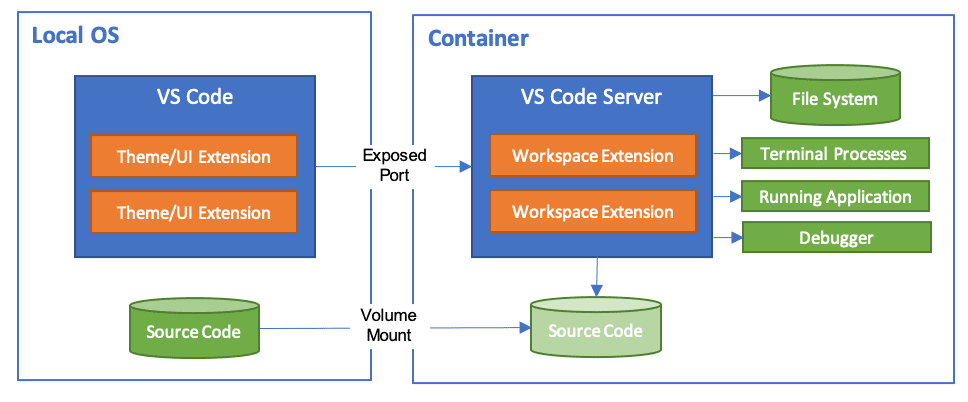
devcontainer.json file tells VS Code how to access (or create) a development container with a well-defined tool and runtime stack.
.devcontainer/ ├─ devcontainer.json └─ Dockerfile (optional)
REQUIREMENTS
- Docker
- Visual Studio Code
- Dev Container extension

devcontainer.json file
//devcontainer.json
{
  "name": "Node.js",

  // Or use a Dockerfile or Docker Compose file. More info: https://containers.dev/guide/dockerfile
  "image": "mcr.microsoft.com/devcontainers/javascript-node:0-18",

  // Features to add to the dev container. More info: https://containers.dev/features.
  // "features": {},

  "customizations": {
    "vscode": {
      "settings": {},
      "extensions": ["streetsidesoftware.code-spell-checker"]
    }
  },

  // "forwardPorts": [3000],

  "portsAttributes": {
    "3000": {
      "label": "Hello Remote World",
      "onAutoForward": "notify"
    }
  },

  "postCreateCommand": "yarn install"

  // "remoteUser": "root"
}
devcontainer.json options
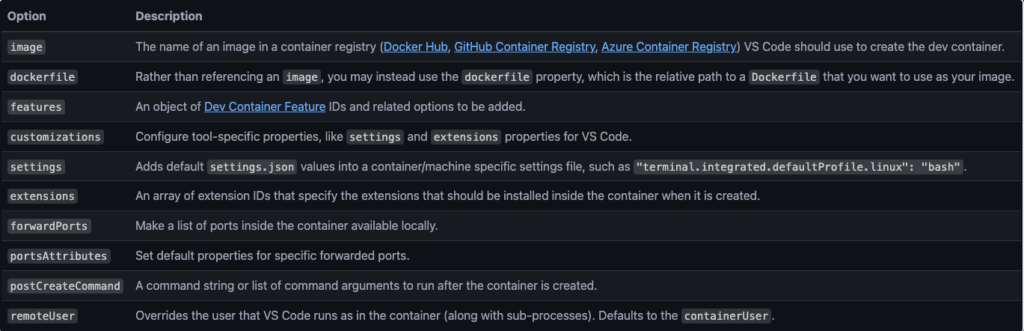
full-list of devcontainer.json options
Available Features for features section
Available Templates for images section
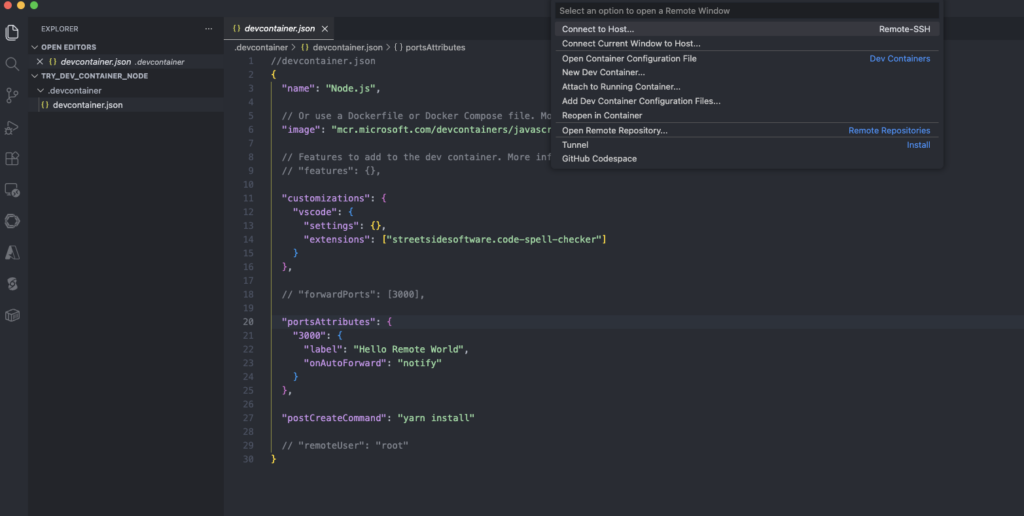
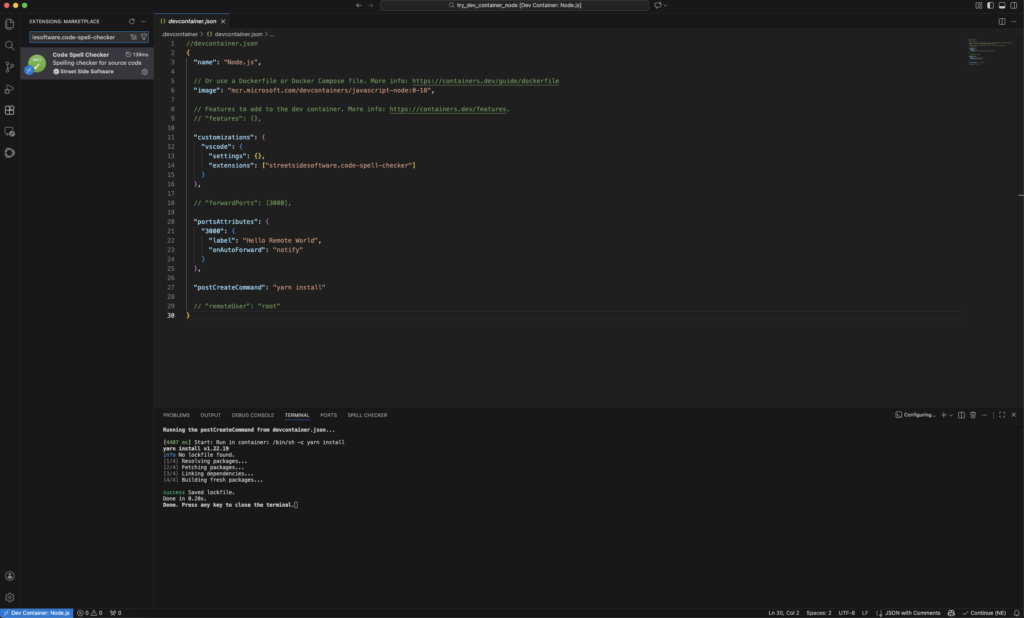
Choosing “Reopen in Container” sets up the container and opens the project inside it.
(extension installed in container)
Advantages
- Works well for multi-developer teams
- Ideal for backend development
- Supports projects with native dependencies
- Well-suited for microservice development
- Helps reduce onboarding time