
Intro
In many applications, a single image file often needs to be served in multiple variants.
For example, a user may upload a high-quality image, but the application typically requires smaller or lower-quality versions of that image for different use cases such as thumbnails, previews, or mobile devices.
Using the original high-resolution image in every scenario can negatively impact application performance. It increases bandwidth consumption, slows down page load times, and places unnecessary load on both the server and the client. For this reason, client applications should be able to request images in the exact size and quality they need.
In this document, we will explain how to design and implement an image resizing workflow using Azure Functions, Azure Blob Storage, and Azure Front Door.
The approach is based on storing the original image in Azure Storage and dynamically generating resized versions on demand via an Azure Function. These resized images can then be cached and reused, providing an efficient, scalable, and cost-effective solution for serving images in different sizes.
– Store original images in Azure Blob Storage
– Use Azure Functions to generate resized image variants dynamically
– Serve optimized images to client applications without compromising performance
Requirement
- Azure Services:
- Storage Account
- images container
- resized-images container
- Azure Function
- Image Resize Function
- Load Balancing And Content Delivery
- Azure Front Door (CDN service)
- Storage Account
Design
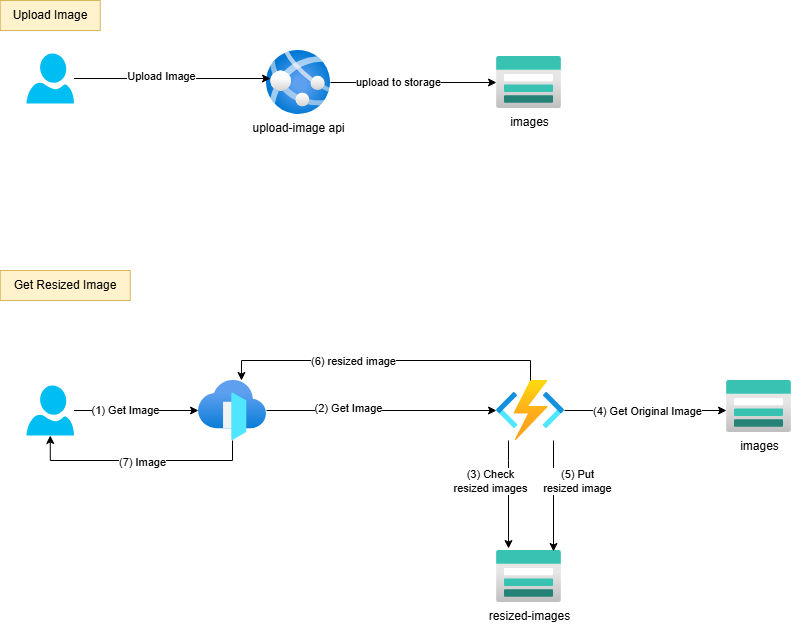
Configuration
1. Create Resource Group

2. Create Storage Account
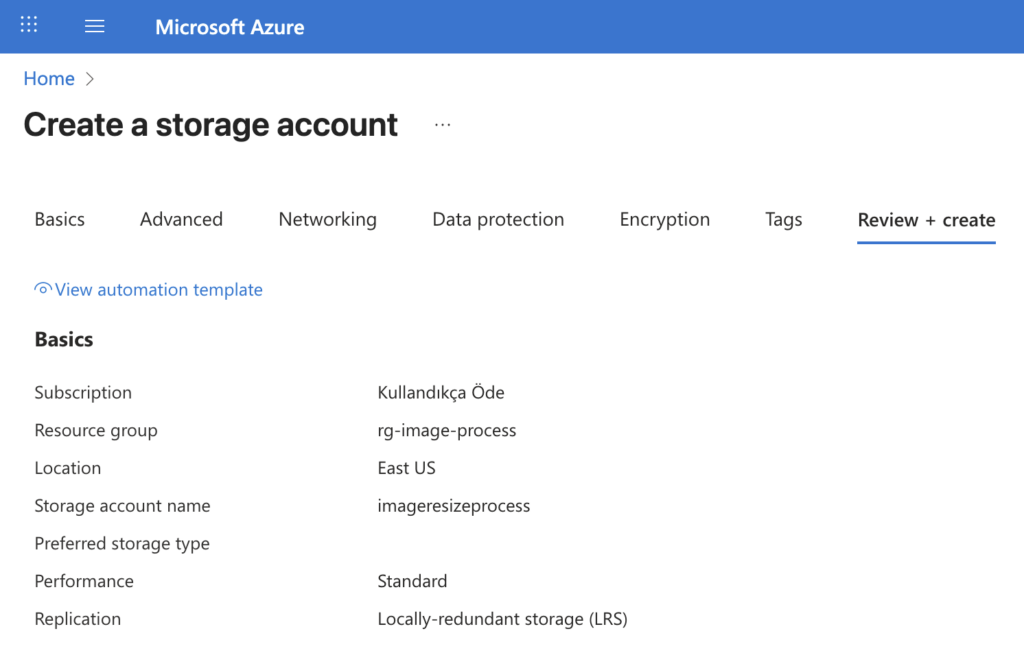
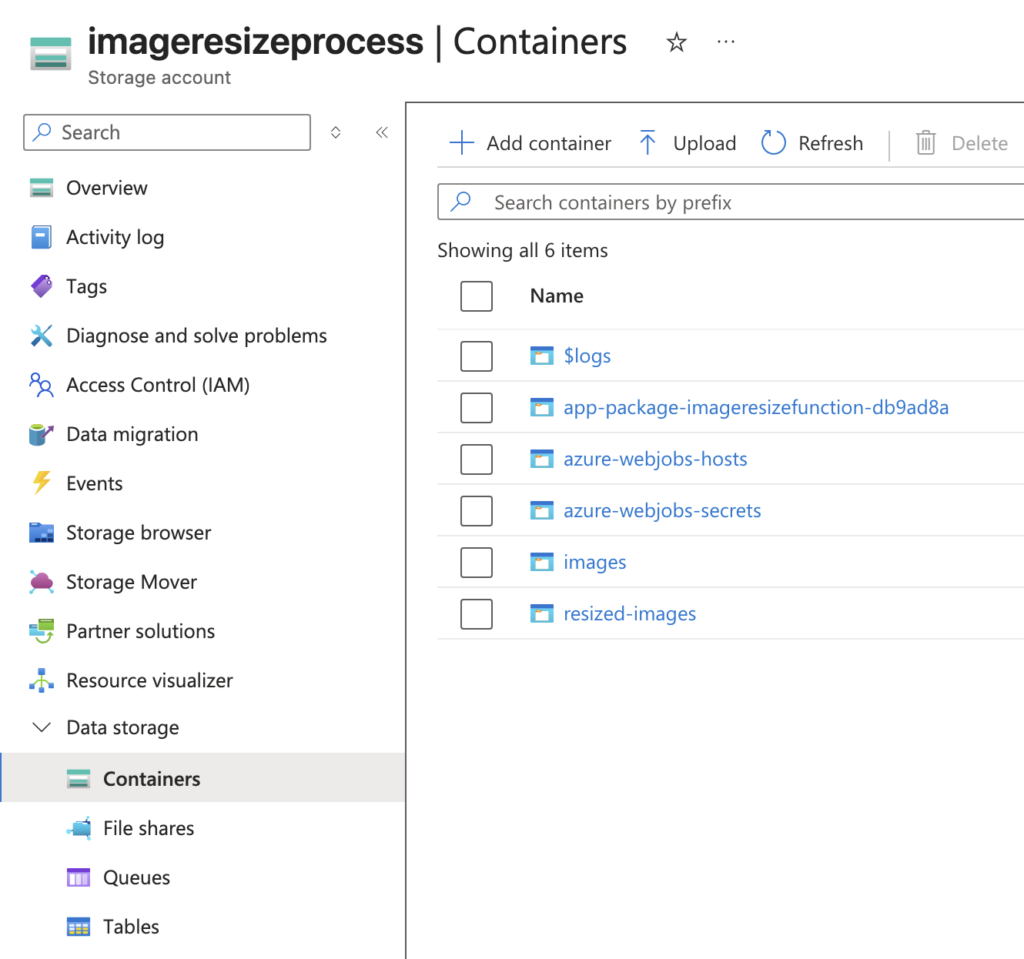
3. Create Blob Containers (images & resized-images)
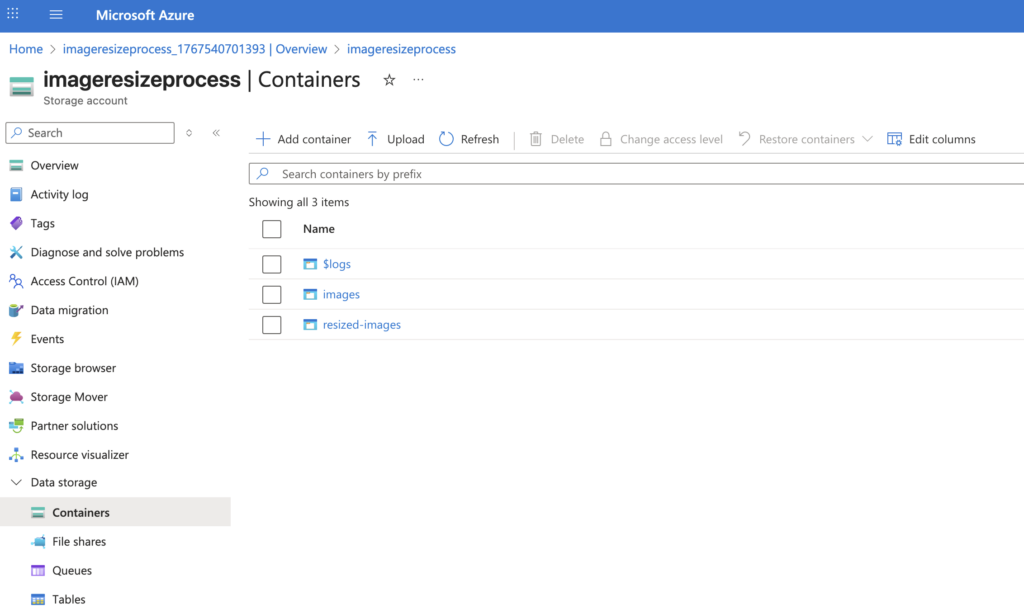
4. Getting Connection String And Upload Image
4.1 Getting Connection String
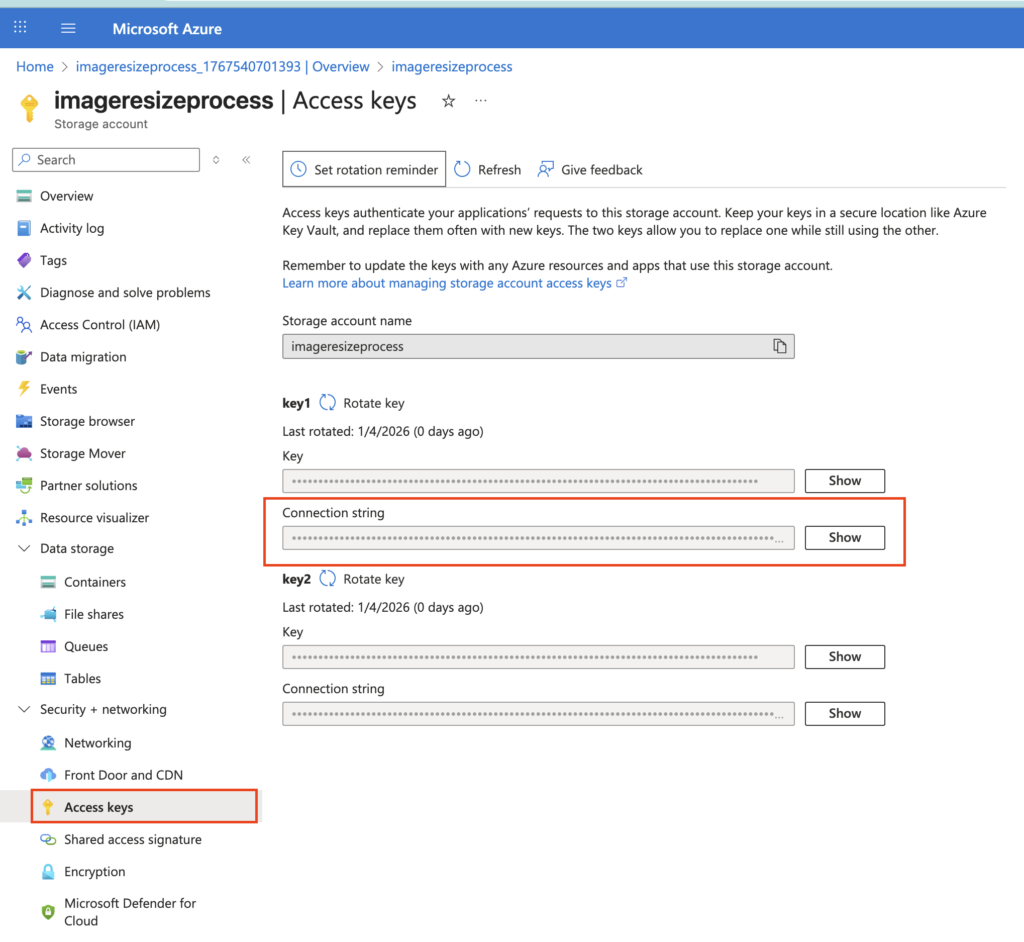
4.2 Image upload requested
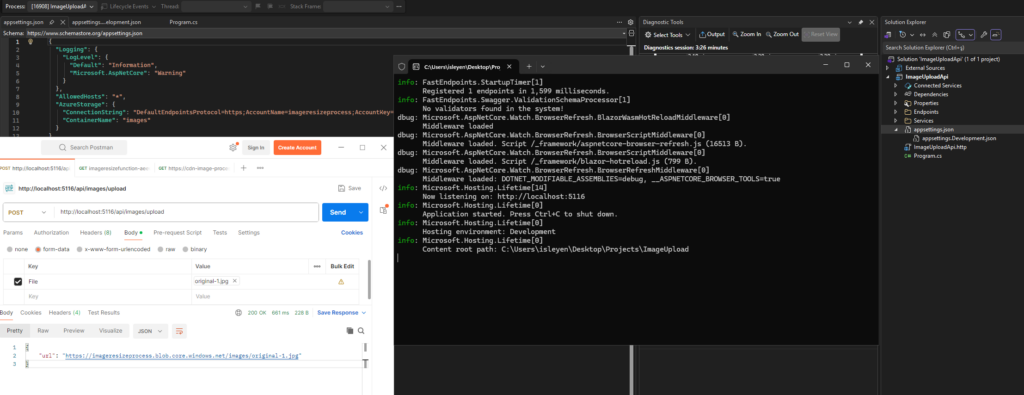
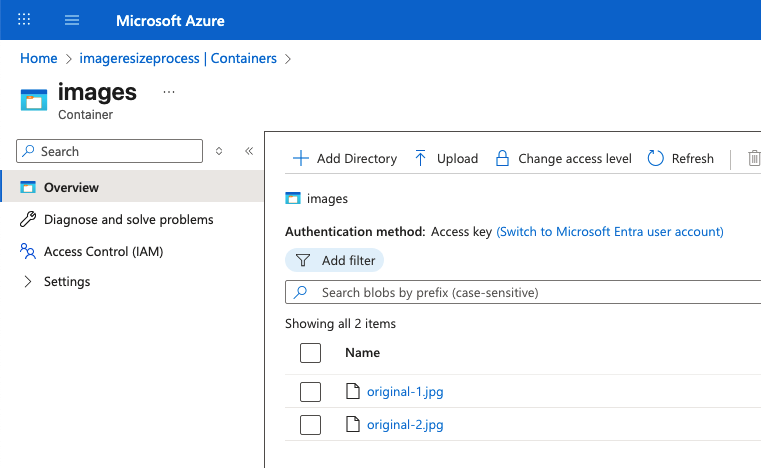
4.3 Checking “images” Container
5. Creating Azure Function

6. Azure Function Deployment – ImageResizeFunction
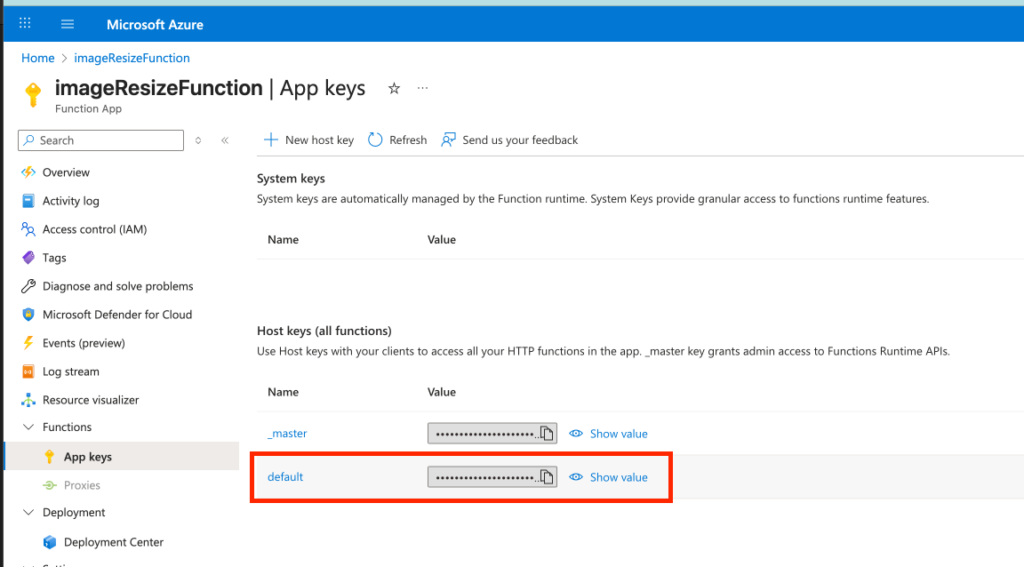
7. Getting Function Key
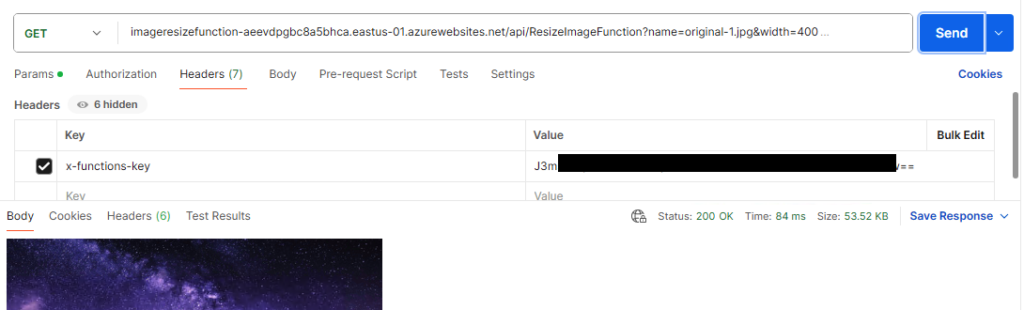
6. Trigger Resize Function
7. Creating Azure Front Door


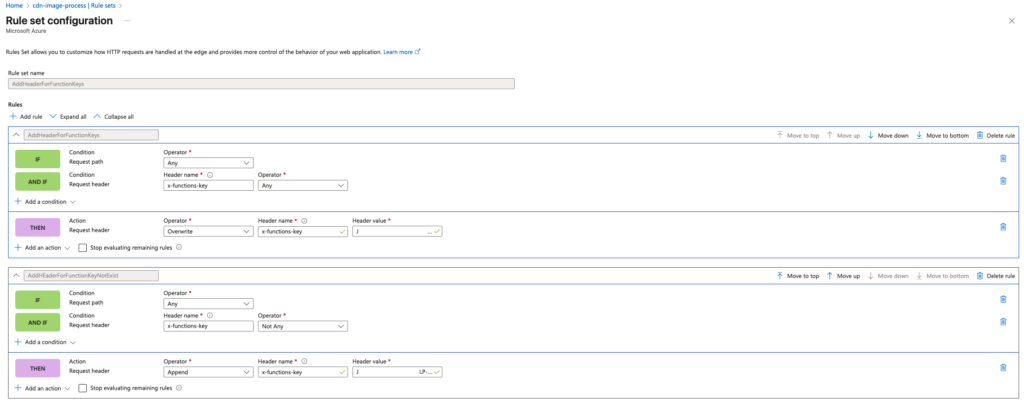
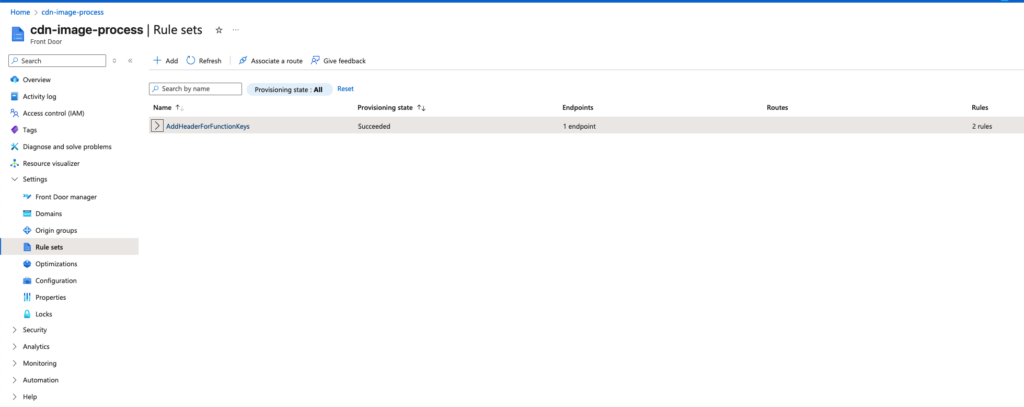
8. Create Rule Set (*optional)
If the resize function uses AuthorizationLevel.Function, each request must include a valid x-functions-key header. When the function is invoked via Azure CDN, the CDN is responsible for attaching this header before forwarding the request to the Azure Function.
9. CDN request

User can change width value dynamically.
Repositories
ImageResize Function: https://github.com/slyn/ImageResizerFunction
UploadImage API:
https://github.com/slyn/ImageUploadApi
Another Image Upload Resize option (using event-grid):
https://learn.microsoft.com/en-us/samples/azure-samples/function-image-upload-resize/function-image-upload-resize/